How to Turn Live Photo into Video (2026)
Live Photos capture 1.5 seconds before and after you tap the shutter—turning a still photo into a tiny video clip. It's a great feature on paper, but in practice, these files are annoying to work with. You can't post them to Instagram Reels, WhatsApp compresses them to a static image, and your Android friends just see a regular photo. If you're stuck with a bunch of Live Photos and need actual video files, this guide walks you through every option: the built-in iPhone method, AI tools that can actually enhance the footage, and desktop software for batch processing.
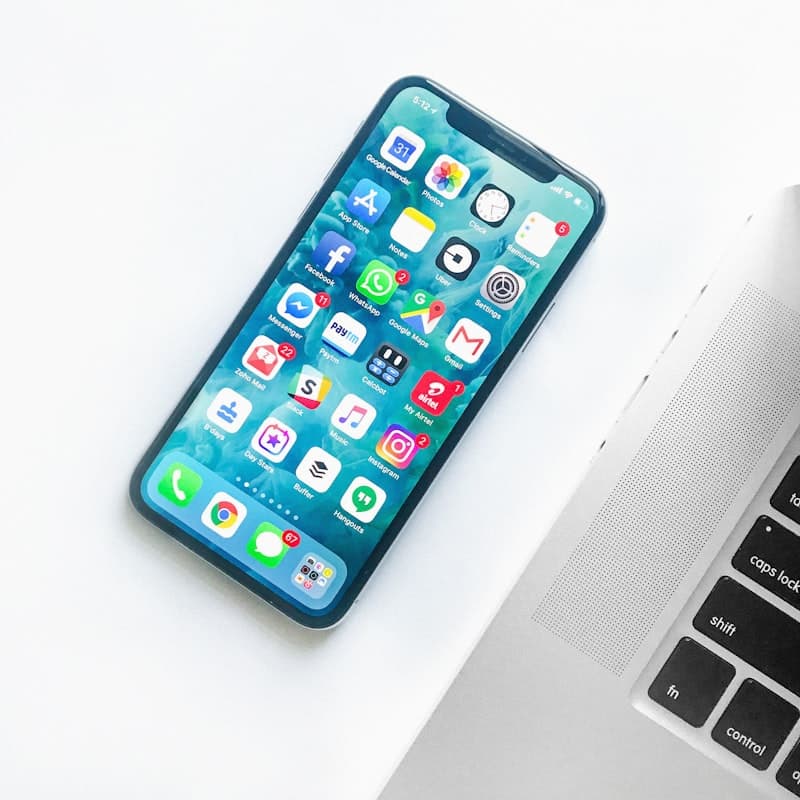
Quick note before we start: a Live Photo is actually two files bundled together. There's the still image (HEIC format, 12MP) and a 3-second MOV video clip recorded at 1440×1080 and roughly 15fps. Your iPhone plays them together, but most apps and platforms only see one or the other—which is why you need to convert.
What Is a Live Photo (And Why Convert It)?
Apple introduced Live Photos back in 2015 with the iPhone 6s. The idea was simple: capture a few seconds of motion around your photo so you get more than just a frozen moment. But here's the thing—this format only plays nice within Apple's ecosystem. Send it to an Android phone? They see a still image. Try to import it into Premiere Pro or DaVinci Resolve? You need extra steps. Want to post it as a TikTok? You'll need to convert first.
Method 1: Convert Live Photo to Video Using iPhone Shortcuts (Native & Free)
The easiest way is right on your phone. If you're on iOS 16 or later, Apple actually built this in:
Using the Photos App (iOS 16 and later)
If you're running iOS 16, iPadOS 16, or newer versions, Apple built the conversion right into the Photos app:
- 1Open the Photos app and navigate to your Live Photo
- 2Tap the Live dropdown menu in the top-left corner
- 3Select Save as Video from the options
- 4The video automatically saves to your Recent album as a standard MOV file
The built-in method works, but it's pretty basic. No trimming, no music, no format choices—just a straight file conversion. And you have to do it one photo at a time. If you just need a quick video for a single Live Photo, it gets the job done. But if you want anything more, you'll need to look elsewhere.
Method 2: Use AI Tools for Better Quality
The built-in method has a real limitation though. AI tools don't just convert the format—they actually process the footage to generate video that looks noticeably better. Here's what that means in practice:
What AI tools actually do differently
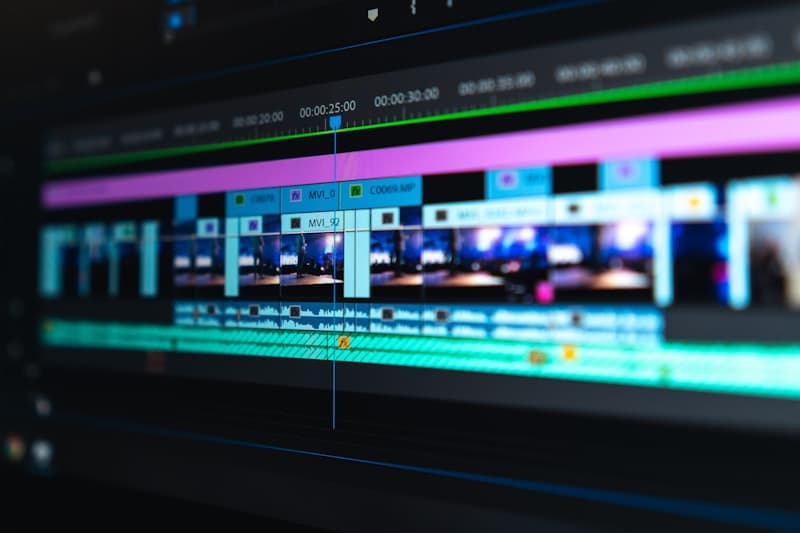
- ✓ Upscale resolution from 1440×1080 to 1080p or 4K using generative AI
- ✓ Stabilize shaky handheld footage captured during the Live Photo duration
- ✓ Extend video duration beyond the original 3 seconds using frame interpolation
- ✓ Apply cinematic effects like slow-motion, zooms, or panning movements
- ✓ Remove noise and enhance low-light performance captured in the Live Photo
Step-by-Step: Converting Live Photos with AI Tools
Modern AI video generators like AI Image to Video streamline this process:
- 1Upload your Live Photo: Open your camera roll, find the Live Photo, and export it (AirDrop to your Mac or email it to yourself to get the MOV file)
- 2Select enhancement options: Choose between standard conversion or AI-enhanced upscaling
- 3Customize output: Select aspect ratio (9:16 for TikTok/Reels, 16:9 for YouTube, 1:1 for Instagram), frame rate (30fps or 60fps), and duration extension if desired
- 4Generate and download: AI processing typically takes 30-60 seconds, delivering an MP4 file optimized for your target platform
Key advantage: Unlike native iPhone conversion, AI tools allow you to transform Live Photos into longer-form content. For example, a 3-second Live Photo of ocean waves can be extended to a 10-second seamless loop using generative frame interpolation—perfect for ambient video backgrounds or B-roll footage.
When does AI conversion make sense?

If you're posting to TikTok or Instagram Reels, AI tools can handle the aspect ratio conversion and frame rate smoothing automatically—no manual editing needed. E-commerce sellers sometimes use this to turn product Live Photos into short video showcases. And if you're archiving family footage, the stabilization alone is worth it—15fps handheld clips of kids or pets rarely look good, and AI interpolation makes a noticeable difference.
Ready to transform your Live Photos?
AI Image to Video GeneratorCheck our pricing plans for more credits and features.
Method 3: Desktop Software (For Bulk or Pro Work)
If you have hundreds of Live Photos to convert, or you need precise control over encoding settings, desktop tools are the way to go.
Using QuickTime Player (Mac)
Mac users can extract the video component manually:
- 1Locate the Live Photo in Finder
- 2Right-click and select Show Package Contents
- 3Navigate to the
resourcesfolder and find thevideo.movfile - 4Copy this file to your desired location
This method provides the raw MOV file without any iOS processing, ideal for professional editing in Final Cut Pro or Adobe Premiere Pro.
Using Image Apps (Windows/Mac)
Applications like Lively (Windows) or Livify (Mac) specialize in Live Photo management:
- ✓ Batch convert hundreds of Live Photos simultaneously
- ✓ Export to multiple formats (MP4, AVI, GIF) in one operation
- ✓ Preserve metadata including timestamps and location data
- ✓ Create GIFs for web use alongside video files
Command Line Solutions
For developers or technical users, FFmpeg provides the most powerful conversion pipeline:
ffmpeg -i input.heic -vf "fps=30,scale=1920:1080" output.mp4This approach gives you raw control over codecs and bitrates—handy if you're feeding footage into a professional editing pipeline.
Format and Quality Optimization Tips
Regardless of your chosen method, optimizing the output ensures your converted Live Photos look professional across all platforms.
Resolution and Aspect Ratio
Live Photos naturally capture at a 4:3 aspect ratio (1440×1080). For modern social platforms:
Instagram Reels / TikTok
Crop to 9:16 (1080×1920) with pillarboxing if necessary
YouTube / Standard Video
Maintain 16:9 (1920×1080) with letterboxing or intelligent cropping
Instagram Feed
Square 1:1 (1080×1080) often works best for original composition preservation
Frame Rate Considerations
Live Photos record at approximately 15fps—choppy compared to standard 30fps video. Since the original video length is only 3 seconds, every frame matters. When converting:
- ✓ Use frame interpolation (available in AI tools) to smooth motion to 30fps or 60fps
- ✓ For slow-motion effects, some AI tools can analyze motion vectors to create convincing slow-mo from 15fps source material
File Format Selection
MP4 (H.264)
Universal compatibility, best for social media and web sharing
MOV (ProRes)
Choose only if you're importing into professional editing software and need maximum quality
HEVC (H.265)
Use for storage efficiency, but ensure target platforms support playback
Troubleshooting Common Conversion Issues
“Live Photo Option Not Showing”
If the “Save as Video” option is missing:
- ✓ Ensure you're running iOS 16 or later (Settings > General > About)
- ✓ Verify the image is actually a Live Photo (look for the “LIVE” badge in Photos app)
- ✓ Check storage space; iOS requires available space to create the video duplicate
Quality Loss After Conversion
If your converted video appears blurry or pixelated:
- ✗ Don't zoom in: Live Photos are lower resolution than standard 4K video; zooming exaggerates artifacts
- ✗ Check export settings: Some tools default to 720p; manually select 1080p minimum
- ✗ Use source files: Always convert from the original Live Photo, not a shared/exported version which may be compressed
Android/Windows Compatibility
When sharing converted Live Photos with non-Apple users:
- ✓ Always convert to MP4: MOV files often won't play on Android devices without third-party apps
- ✓ Use cloud links: Instead of MMS (which heavily compresses video), share via iCloud, Google Drive, or Dropbox links
- ✓ Check codec support: Ensure H.264 encoding rather than HEVC for maximum compatibility with older Android devices
Batch Conversion Needs
For users with hundreds of Live Photos (common after family events or vacations):
- ✓ Mac: Use the “Export Unmodified Original” feature in Photos app, then use Automator to batch convert
- ✓ Windows: PowerRename combined with FFmpeg scripts can process entire folders
- ✓ AI Tools: Some platforms offer API access for bulk processing—ideal for professional photographers
Frequently Asked Questions
Can I turn a Live Photo into a video without losing quality?
Yes, when using native iPhone conversion or high-quality AI tools. However, understand that Live Photos are inherently lower resolution (1440×1080) than modern 4K video. The "quality" refers to avoiding additional compression artifacts during conversion.
How do I convert Live Photo to video on Android?
Android doesn't capture Live Photos natively, but if you've received one via AirDrop or email, use Google Photos' "Save as video" feature (available on Pixel devices) or third-party apps like Motion Stills by Google Research.
Can I edit a Live Photo before converting to video?
Absolutely. iOS allows you to trim the Live Photo, change the key photo (the static frame shown), and apply filters before conversion. For advanced editing (color grading, cropping), convert to video first, then import into your preferred video editing app.
Is it legal to convert Live Photos to video for commercial use?
Yes, provided you own the copyright to the original image. If you photographed the subject, you hold the rights to both the image and video conversion. For Live Photos containing identifiable people, standard model release requirements apply for commercial usage.
Why does my Live Photo video look choppy?
Live Photos record at ~15fps to save storage space. For smoother playback, use AI tools with frame interpolation capabilities to upscale to 30fps or 60fps.
Which Method Should You Use?
It depends on what you're trying to do. If you have one or two Live Photos and just need a video file, the iOS 16 built-in option takes 5 seconds and costs nothing. If you're posting to social media or want better quality than the original 1440×1080, AI tools are worth the extra step—especially for the frame rate smoothing and aspect ratio handling. And if you're dealing with a whole vacation's worth of Live Photos, grab FFmpeg or a dedicated desktop app and batch process them.
One thing to keep in mind: Live Photos are inherently low resolution compared to what modern phones can shoot. No conversion method will turn a 1440×1080 clip into true 4K. The best you can realistically get is a clean 1080p video with smooth playback—which is good enough for most social media platforms.
Try Our AI Video Tools
Ready to Turn Your Live Photos into Videos?
AI Image to Video Generator — upload any Live Photo and get an enhanced video in minutes. Generation uses purchased credits.
AI Image to Video Generator