AI Image Expander
Extend any photo to 9:16 vertical, 16:9 widescreen, or 21:9 cinema with context-aware AI outpainting—then send the expanded frame straight into Image to Video.
 Seedream 5.5
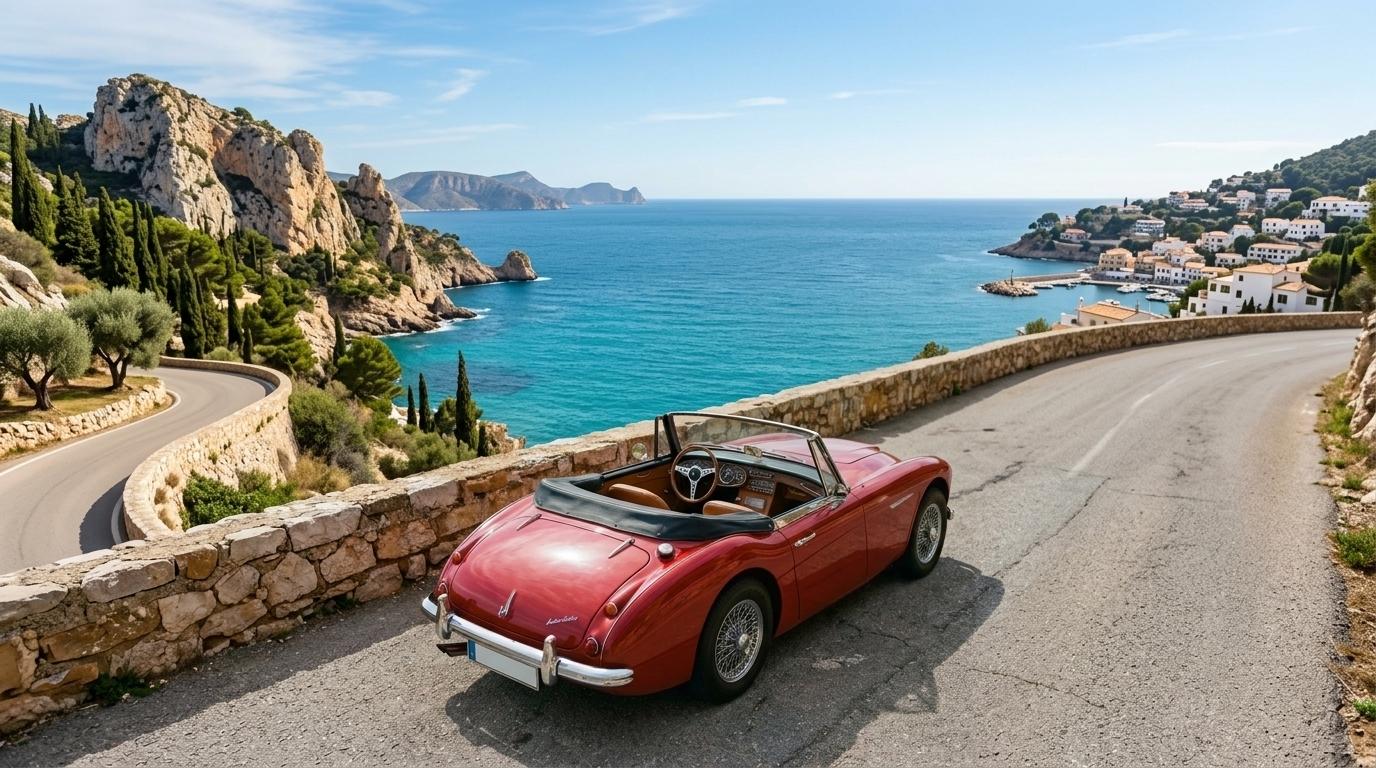
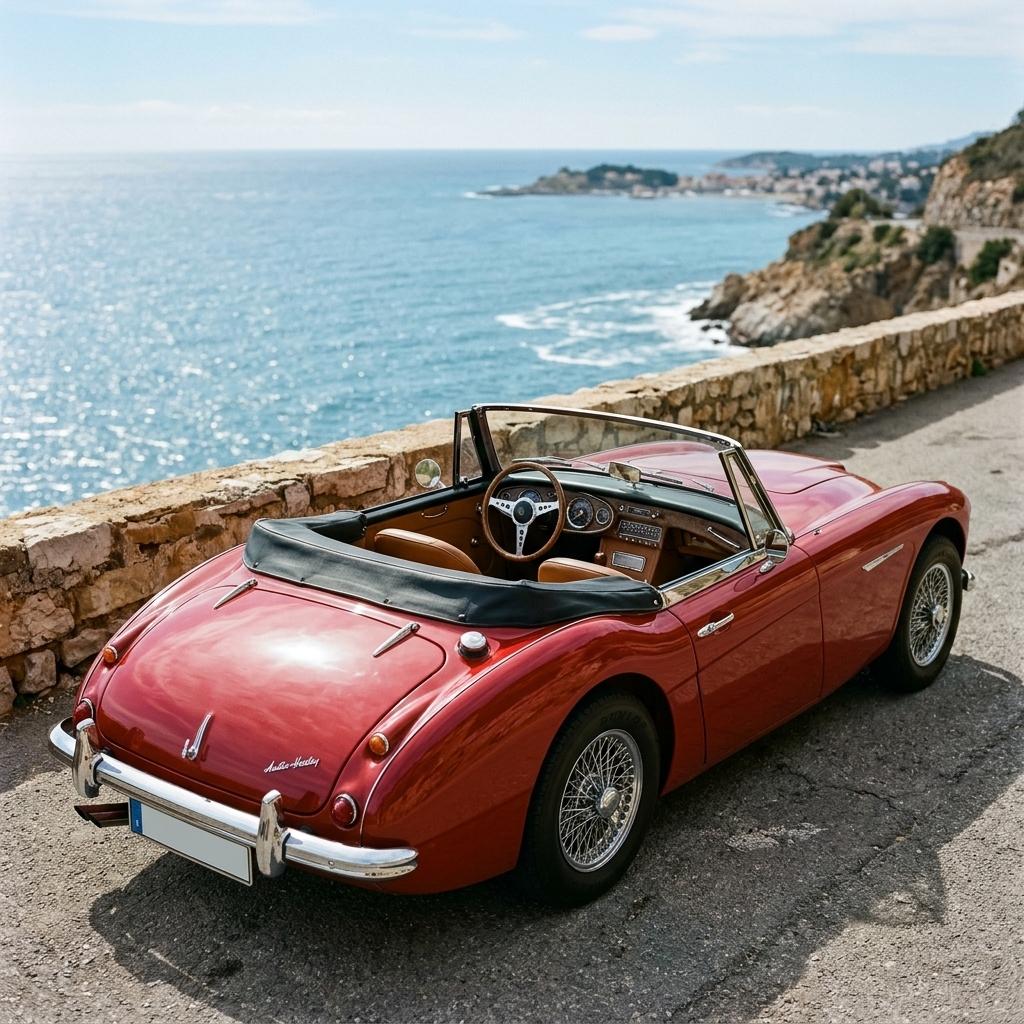
Reframe one image for every screen without cropping
Pick your destination ratio instead of fighting black bars, stretched edges, or awkward crops.
 9:16 Vertical
Reels, TikTok & Shorts
Turn horizontal landscapes or square product shots into full-bleed vertical frames without slicing off your subject.
 16:9 Widescreen
YouTube & Video Start Frames
Widen tightly cropped portraits or 1:1 photos into cinema-ready 16:9 frames before animating them in Seedance, Kling, or Veo.
 1:1 & 4:3
E-Commerce & Social Feeds
Add breathing room around tight product photography so marketplaces and ad banners never clip packaging edges.
 21:9 Ultrawide
Hero Banners & Film Stills
Create sweeping panoramic headers with generous negative space for website typography or widescreen trailers.
How AI image expansion works in 3 steps
Upload any tight or mismatched crop
Start with a 1:1 product photo, 4:3 portrait, or horizontal landscape shot up to 10MB.
Pick your target aspect ratio
Choose 9:16 for vertical feeds, 16:9 for YouTube and AI video start frames, or 21:9 for panoramic banners. Guidance text is optional.
Download or send straight to Image to Video
Export clean full-res PNGs with zero watermarks, or click Animate as Video to turn the expanded frame into motion immediately.
Prep cleaner start frames before you animate
Tightly cropped photos give AI video models almost no room for camera pans or dolly-outs. Expanding your photo to 16:9 or 9:16 first gives Seedance 2.5, Kling 4.0, and Veo 3.1 rich surrounding scenery to move through smoothly.
- Zero black bars when animating 1:1 photos in 16:9 or 9:16 video
- One-click handoff carries your expanded image straight to Image to Video
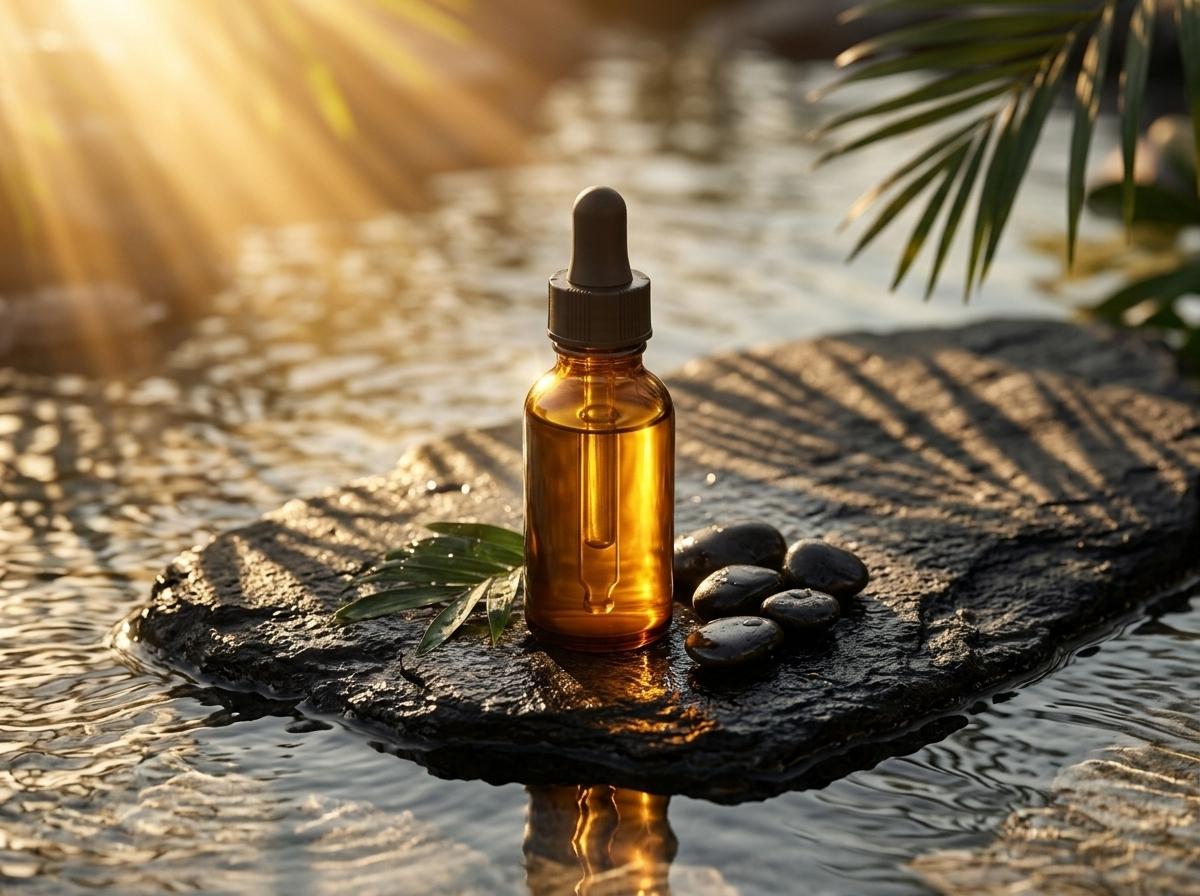
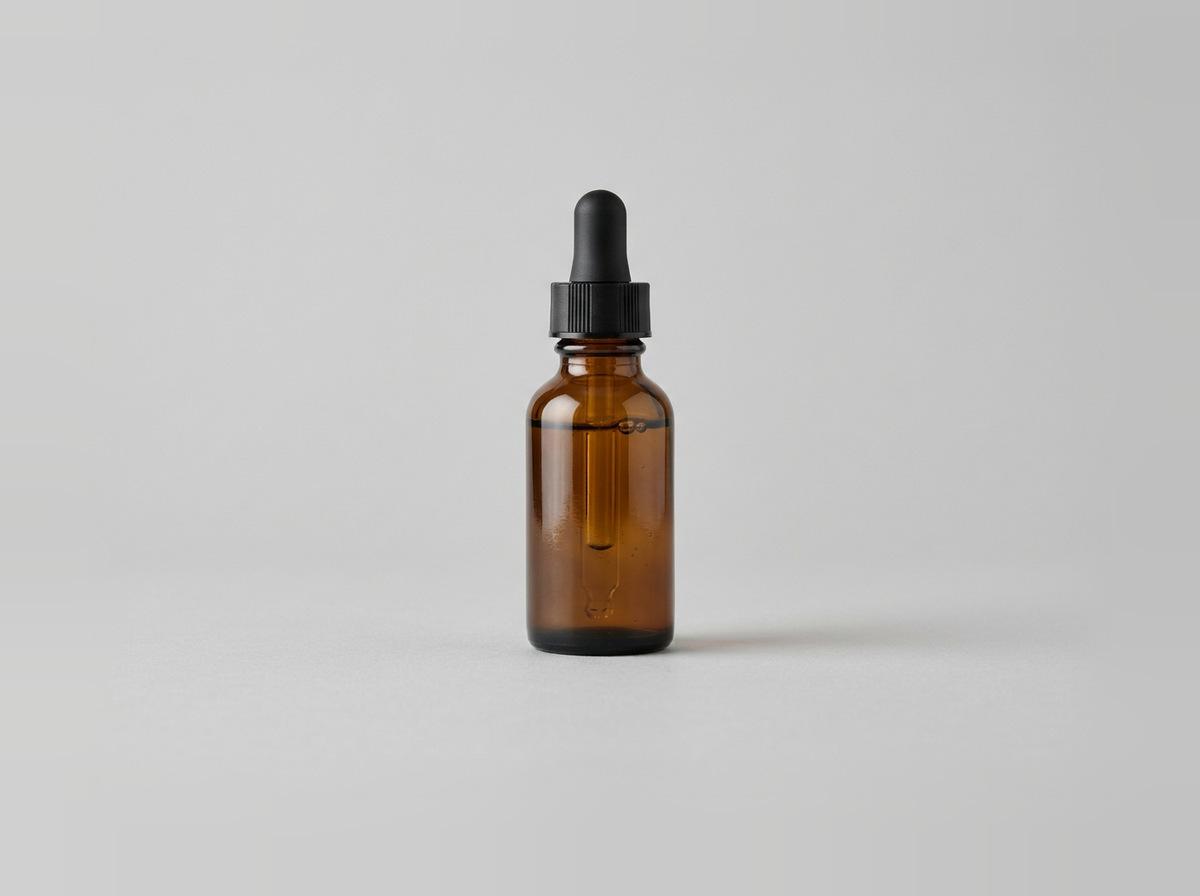
Tips for seamless AI outpainting borders
Small adjustments that make expanded edges indistinguishable from the original lens.
Leave Scene Guidance blank for pure continuation
For skies, water, studio sweeps, and foliage, leaving the optional note empty lets Seedream 5.5 match exact grain, bokeh, and horizon lines automatically.
Name side elements for dramatic reframes
When expanding a tight 1:1 shot to 21:9, add a short hint like 'extend stone walkway and blurred warm cafe lights on both sides' to avoid repetitive edges.
Expand before animating for smoother camera pans
AI video models pan much more naturally when there is generous environment around your subject. Expanding to 16:9 or 9:16 first prevents edge distortion.
Match model to subject geometry
Use Seedream 5.5 for organic landscapes, portraits, and studio light; switch to Qwen Image 2.1 when extending crisp architecture or product grids.
Supported outpainting models & credit pricing
| Model | Strengths | Resolutions | Credits |
|---|---|---|---|
| Seedream 5.5 (Default) | Most natural lighting & organic edge continuity | 1K / 1.5K / 2K | 15 / 15 / 25 |
| Qwen Image 2.1 | Sharp architectural lines & strict subject lock | 1K / 2K | 15 / 25 |
| Nano Banana 2 | High-detail outpainting up to print-ready 4K | 1K / 2K / 4K | 20 / 25 / 40 |
| Nano Banana 2 Lite | Fastest low-cost ratio previews | Standard | 10 |
Frequently asked questions
What does an AI image expander do?
An AI image expander (also called AI uncrop or outpainting) extends the canvas beyond your photo's original edges. Instead of cropping out important parts of your subject to fit a new aspect ratio, the model analyzes lighting, perspective, and textures to paint matching scenery around your image.
Can I expand a horizontal image into 9:16 vertical for Reels or video?
Yes. Upload your horizontal or square photo, select 9:16 in Target Aspect Ratio, optionally add brief guidance for the sky or foreground, and generate. Once done, click Animate as Video to use that 9:16 frame immediately in our Image to Video generator.
Which model works best for seamless image expansion?
Seedream 5.5 (selected by default at 15 credits for 1K) produces highly natural lighting and edge continuity for landscapes and lifestyle shots. Qwen Image 2.1 and Nano Banana 2 are also available when you want sharper architectural lines or 4K output.
Will expanding my image distort or alter the original subject?
Our expansion prompt instructs the model to preserve the original subject, proportions, and lighting while extending only the surrounding environment. Adding a short scene note helps guide complex backgrounds.
Do I need to write a prompt to expand an image?
No. Scene Guidance is completely optional. Leave it blank for automatic context-aware background continuation, or add a few words when you want specific scenery in the new border space.
Does the expanded image have a watermark?
No. Every expanded export downloads clean and watermark-free, ready for commercial ads, YouTube thumbnails, or AI video generation.
How much does AI image expansion cost?
Expansions start at 10 credits (Standard on Nano Banana 2 Lite), 15 credits (1K), and 25 credits (2K), with one-time credit packs starting at $12.99 and automatic refunds if a generation fails.
Bring any still frame to life on our picture to video AI studio.