AI Image Editor with Prompt
Upload any photo and describe the edit in plain English—swap backgrounds, relight portraits, replace text, or export transparent PNGs, then animate into video in one click.
 Qwen Image 2.1
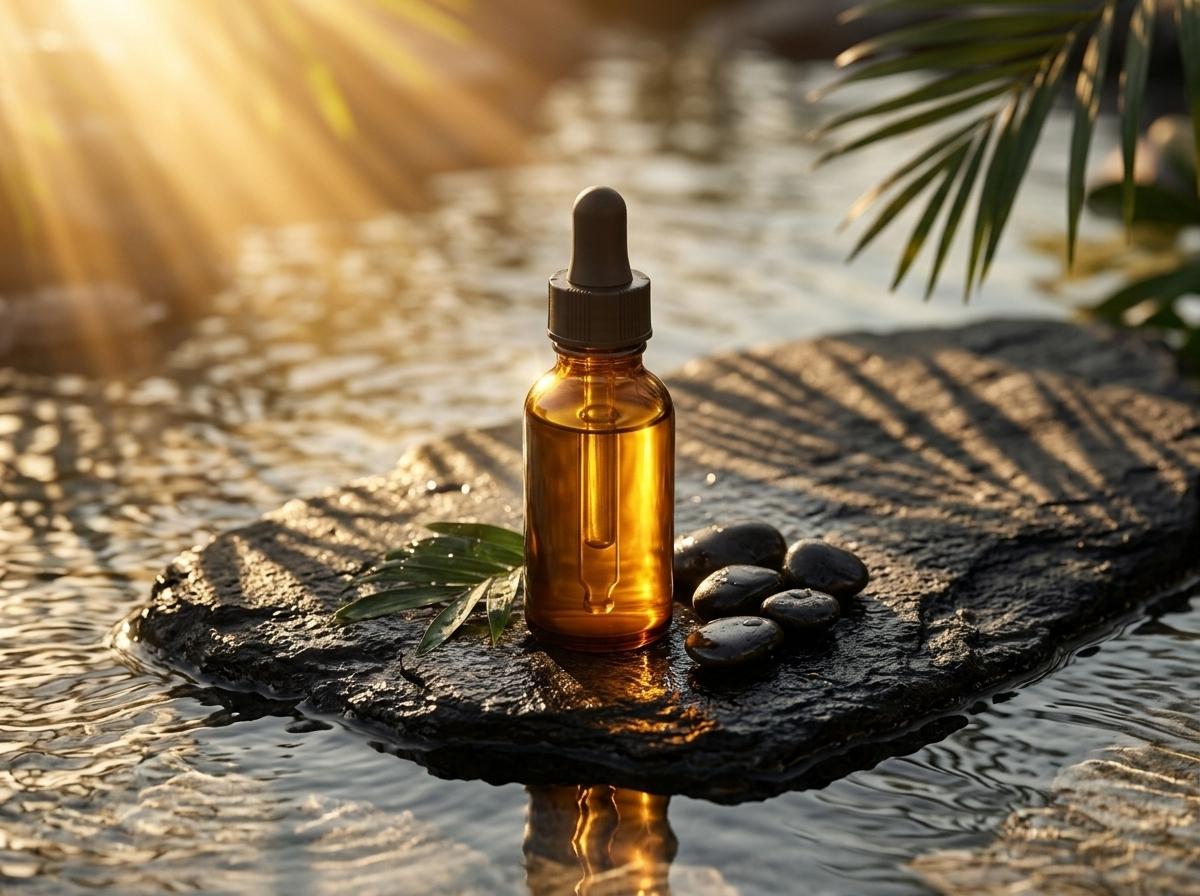
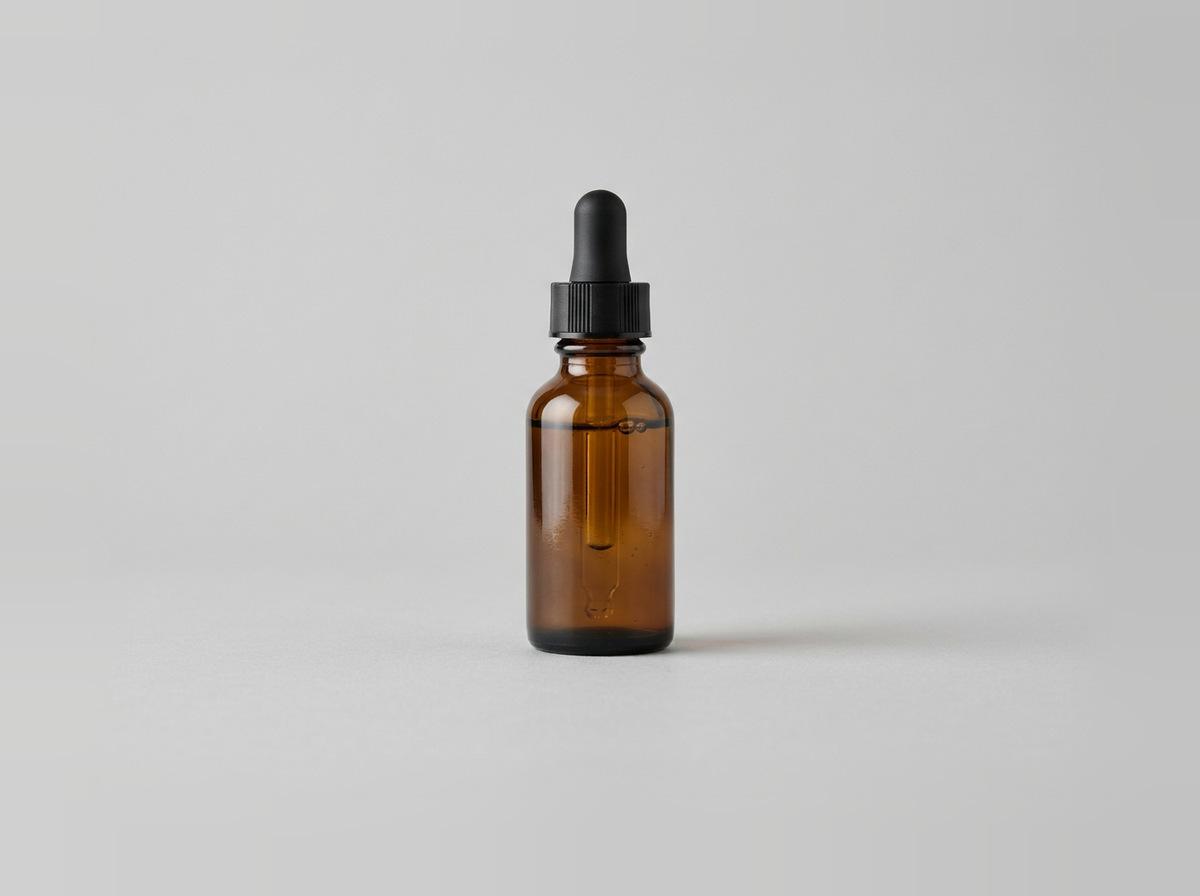
Real-world prompt edits, side by side
Drag any slider to inspect how subject geometry, facial identity, room perspective, and typography hold up when you edit with a single sentence.
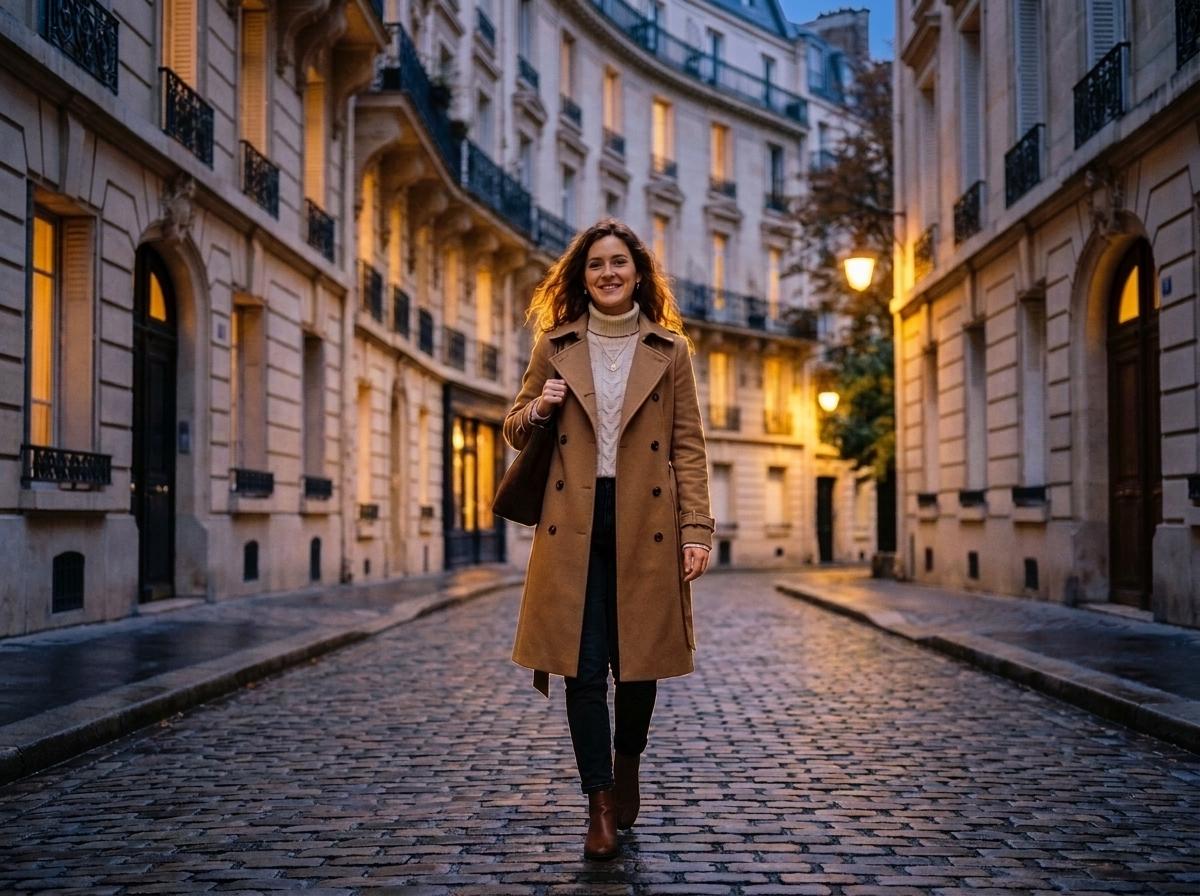
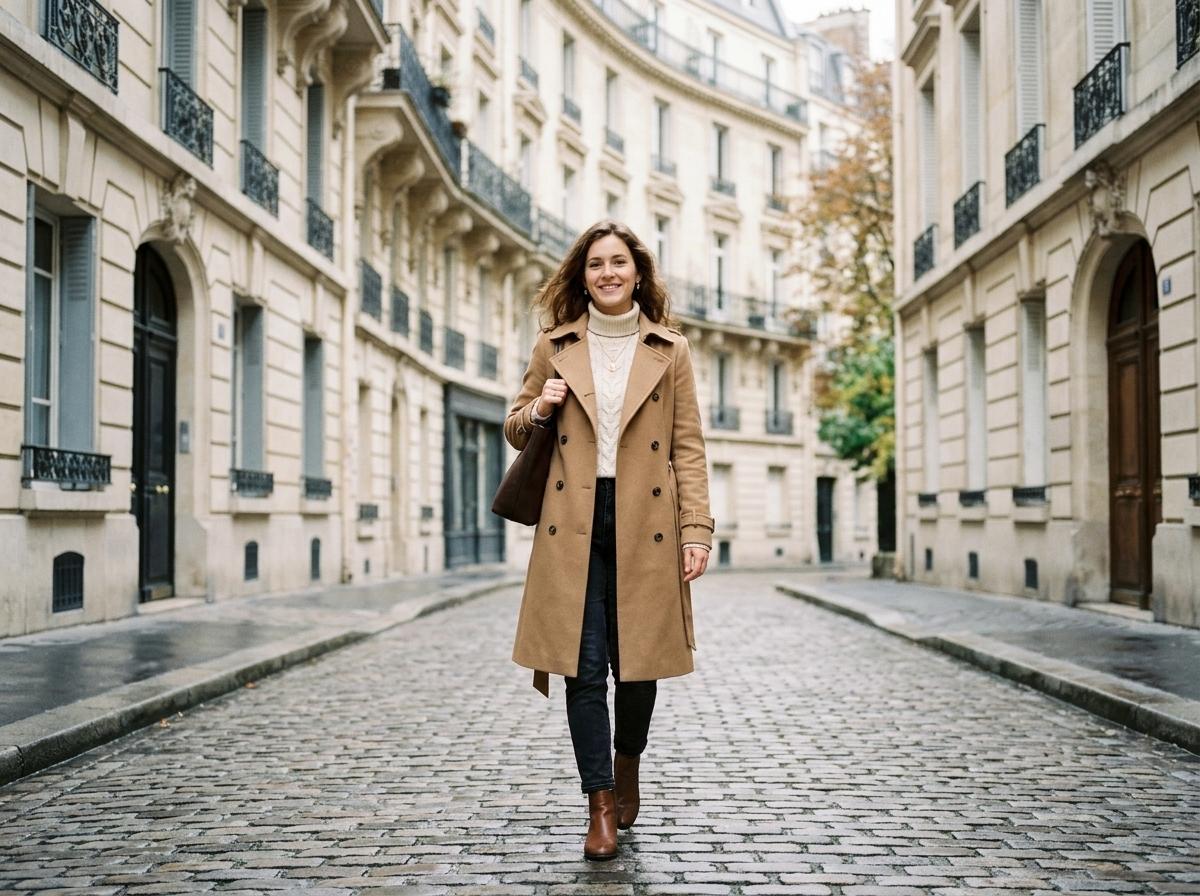
Relight overcast portraits for twilight warmth
Prompt: Transform flat overcast daylight into golden-hour twilight rim light with warm glowing cafe windows behind the subject, preserving exact face and coat.
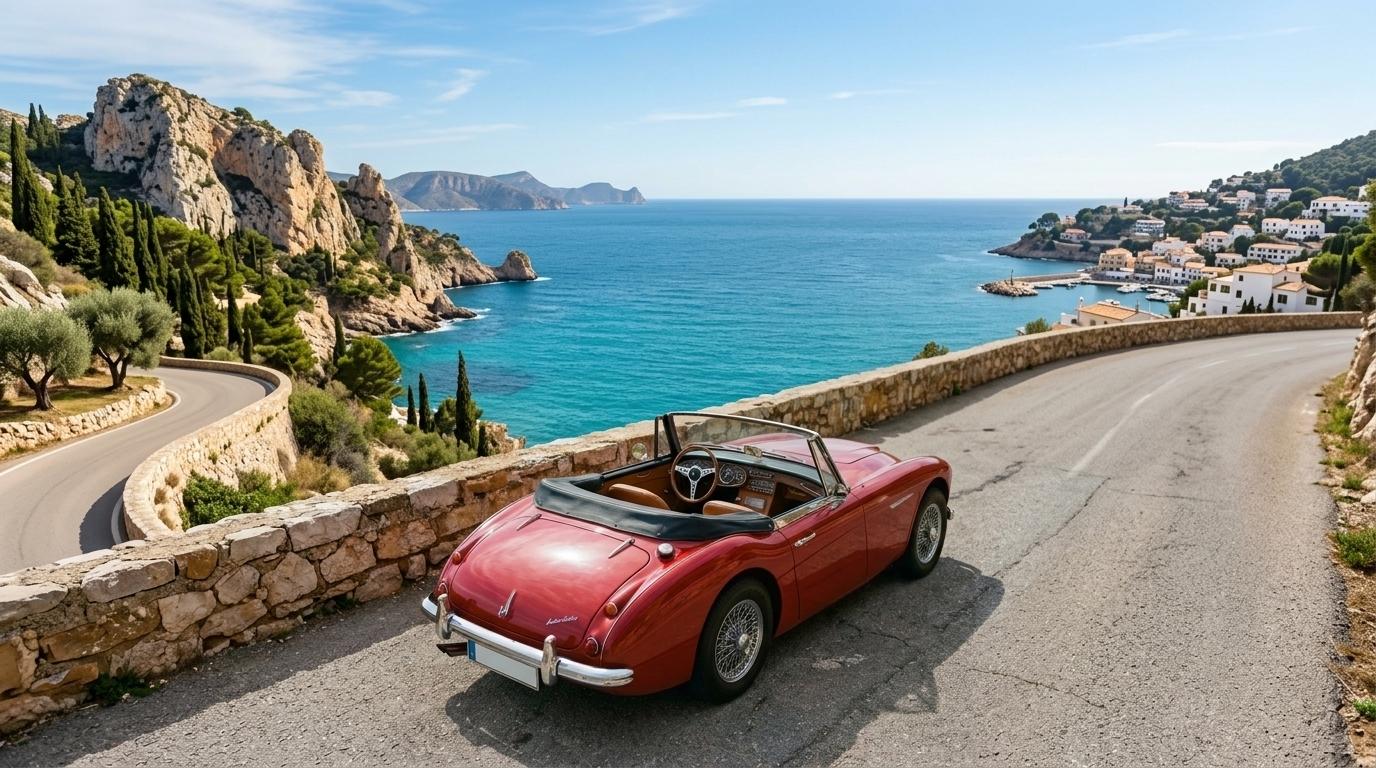
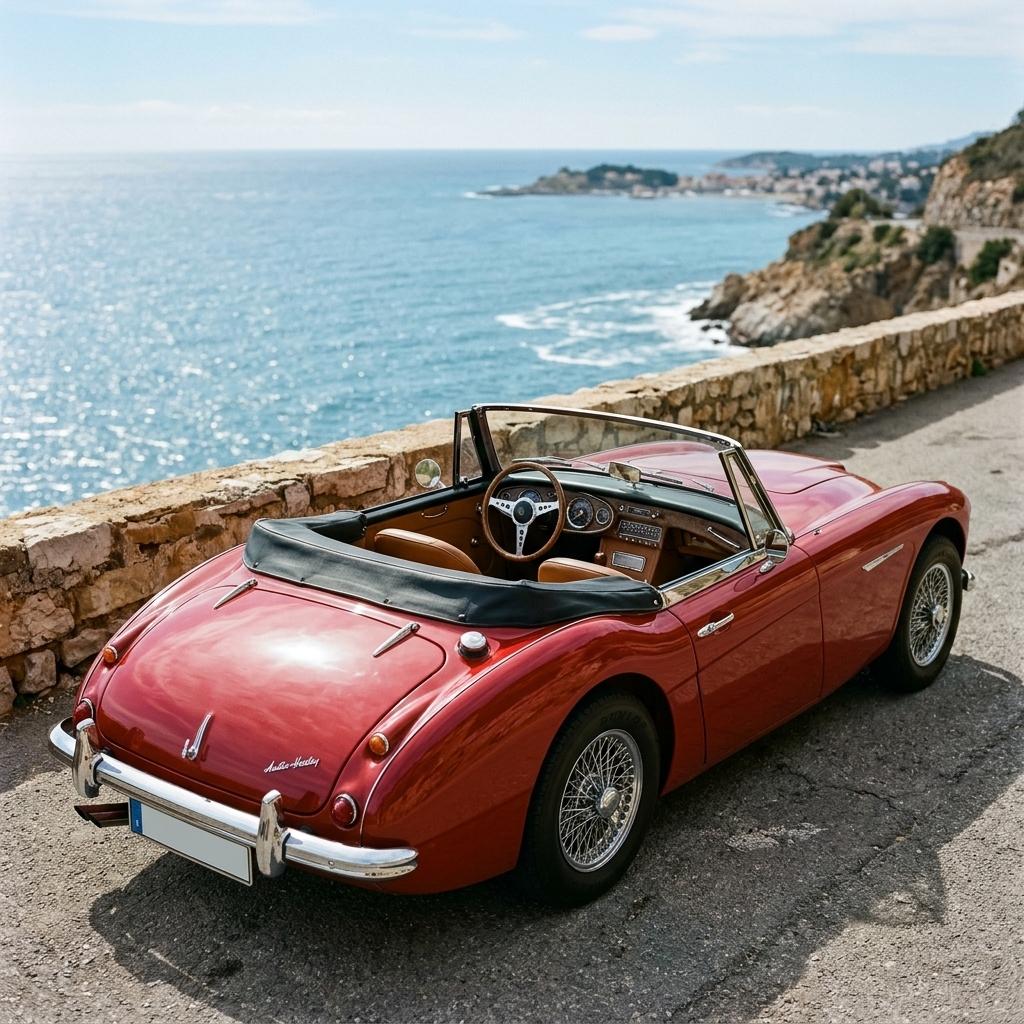
Extend tight square shots into widescreen scenes
Prompt: Expand the tight square photo into a sweeping 16:9 coastal highway panorama with matching sunset cliffs, ocean haze, and road perspective.
How prompt-based photo editing works
No Photoshop layers, lasso tools, or local GPU setup—go from raw snapshot to finished asset in three steps.
Upload your source image
Drop in a JPG, PNG, or WebP up to 10MB—product photography, street portraits, room shots, or marketing posters.
Describe the edit in plain English
State what should change and what should stay locked. Pick Qwen Image 2.1 for text/cutouts or Seedream 5.5 for lighting and realism.
Download clean PNG or animate into video
Export watermark-free at up to 4K resolution, or click Animate as Video to turn your edited frame into a motion clip.
Copy-ready prompts that preserve your subject
The secret to clean AI edits is naming both what changes and what stays fixed. Reuse these proven structures directly in the editor above.
 Product Swap
Commercial splash & tabletop
“Keep the exact product centered and unchanged. Replace the background with a sunlit citrus studio set with crisp water droplets and soft shadows.”
 Lighting
Cinematic golden hour
“Keep the subject's face, pose, and outfit identical. Add warm low-angle sunset rim light and atmospheric reflections across the background.”
 Atmosphere
Greenhouse rain & mood shift
“Change the weather to soft afternoon rain with glistening glass reflections and cool cinematic contrast while preserving the foreground subject.”
 Food & Social
Editorial cafe food styling
“Replace the cluttered table with a warm travertine stone surface, soft morning window light, and shallow depth-of-field cafe bokeh.”
 Style Shift
Anime & illustrated look
“Restyle the scene into crisp hand-painted anime illustration with vibrant sky clouds while keeping the subject pose and composition intact.”
 Craft & Material
Studio ceramic & texture swap
“Keep the exact ceramic silhouette unchanged. Replace the plain backdrop with a warm artisan kiln studio, soft ember glow, and shallow depth of field.”
Compare the 5 editing models included in one workspace
Switch models anytime from the dropdown without paying for separate subscriptions.
| Model | Best For | Resolutions | Transparent PNG | Credits |
|---|---|---|---|---|
| Qwen Image 2.1 | In-place text edits, subject consistency & transparent PNGs | 1K / 2K | Native RGBA | 15 / 25 |
| Seedream 5.5 | Photorealistic lighting swaps, studio backgrounds & outpainting | 1K / 1.5K / 2K | Supported | 15 / 15 / 25 |
| Nano Banana 2 | High-detail instruction editing and print-ready 4K exports | 1K / 2K / 4K | Opaque | 20 / 25 / 40 |
| GPT Image 2.6 Flare | Complex multi-part instructions & creative poster layouts | 1K / 2K / 4K | Supported | 20 / 25 / 40 |
| Nano Banana 2 Lite | Fastest low-cost drafts and quick prompt testing | Standard | Opaque | 10 |
Built for fast, repeatable visual edits
Natural-language editing, zero masking
Describe what should change—lighting, background, wardrobe, weather, or props—and keep the original subject intact without brushing selection masks.
In-place text & label edits
Switch to Qwen Image 2.1 or GPT Image 2.6 Flare to update headlines, packaging copy, or storefront signs while matching surrounding lighting and perspective.
Native transparent PNG export
Toggle Transparent PNG output to isolate products, stickers, or characters with clean edges—no second background-removal tool required.
Edit once, animate into video
Happy with your edited image? Click Animate as Video to send it directly to Seedance 2.5, Kling 4.0, Veo 3.1, or MiniMax H3 as your starting frame.
Need to widen the canvas or compare models first?
Combine prompt editing with aspect-ratio expansion and our dedicated Qwen Image Edit workspace—all sharing one credit balance with zero watermarks.
- Starts at 10–15 credits per edit, automatic refunds on failed jobs
- One-click handoff to Image to Video (Seedance 2.5, Kling 4.0, Veo 3.1)
Frequently asked questions
How does an AI image editor with prompt work?
Upload a JPG, PNG, or WebP photo, write a plain-English instruction describing what to change, and pick a model such as Qwen Image 2.1 or Seedream 5.5. The model reads both your image and prompt to modify only the requested elements while preserving the rest of the composition.
Which model should I pick for prompt-based image editing?
Start with Qwen Image 2.1 (15 credits at 1K) for sharp subject preservation, in-place text edits, and transparent PNG exports. Choose Seedream 5.5 for photorealistic lighting and scene swaps, or Nano Banana 2 when you need 4K output.
How do I keep faces or products from changing during an edit?
State explicitly what should stay locked—for example, 'Keep the person's face, expression, and coat identical; only change the lighting to warm sunset.' Qwen Image 2.1 is specifically tuned to minimize identity and geometry drift.
Are edited images watermarked?
No. Every paid edit downloads at full resolution with no visible watermark, and one-time credit packs start at $12.99 with no recurring subscription required.
Can I edit text inside an existing image?
Yes. Select Qwen Image 2.1 or GPT Image 2.6 Flare, quote the exact replacement wording in your prompt, and specify that the font style, alignment, and background should stay consistent.
What happens if an image edit fails?
If the provider fails to render your job, your deducted credits are automatically refunded back to your balance.
Can I turn my edited image directly into a video?
Yes. As soon as your edit finishes, click Animate as Video to carry the full-resolution image straight into the Image to Video generator as your first frame.
Turn any image to AI video with the full model lineup on our homepage.