Qwen Image Edit Online

Run Qwen Image 2.1 in your browser—no local GPU or ComfyUI setup needed. Edit text inside posters, relight portraits with minimal face drift, and export crisp 2K transparent PNGs.

0/5000
Interactive Before / After Preview
Qwen Image 2.1 logoQwen Image 2.1
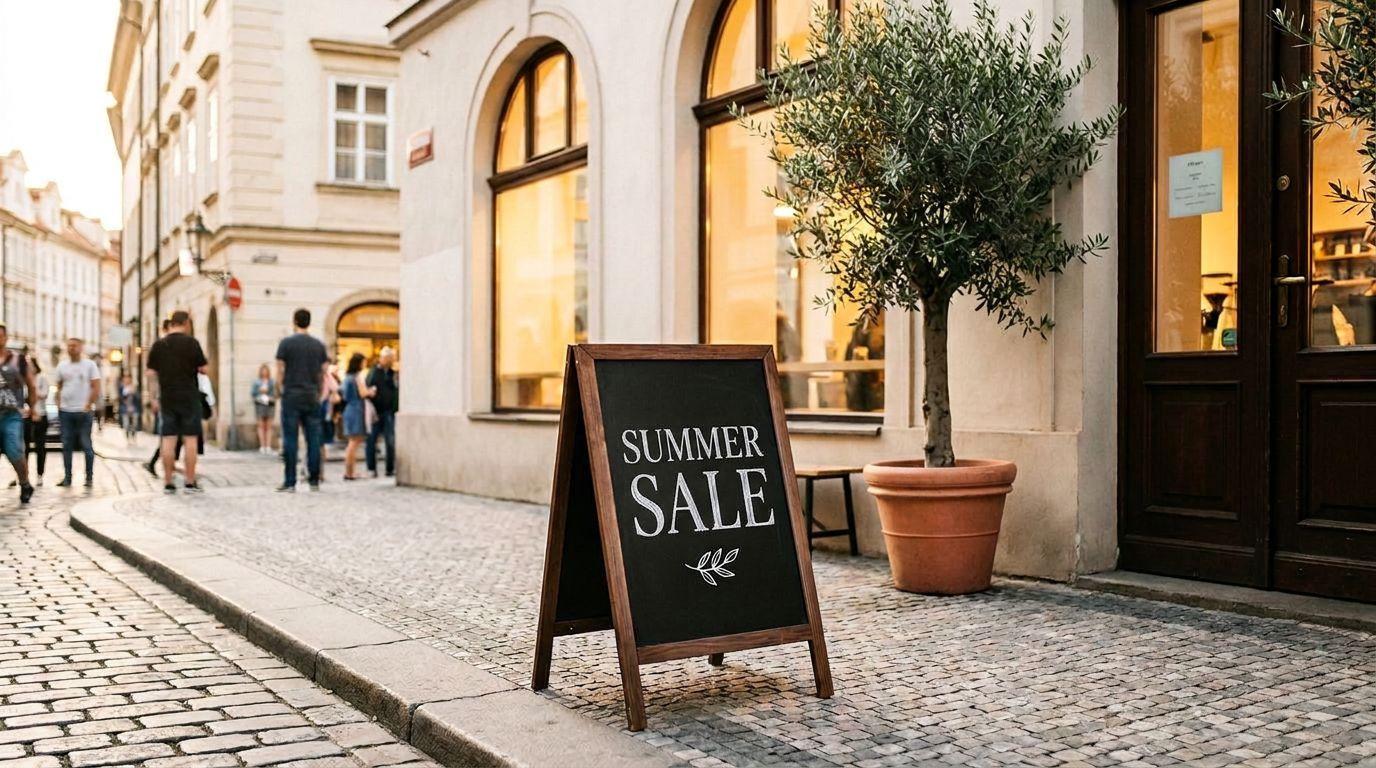
After: Chalkboard lettering replaced from 'OPEN DAILY' to 'SUMMER SALE' while keeping the wooden frame, cobblestones, olive tree, and golden-hour lighting pixel-locked.
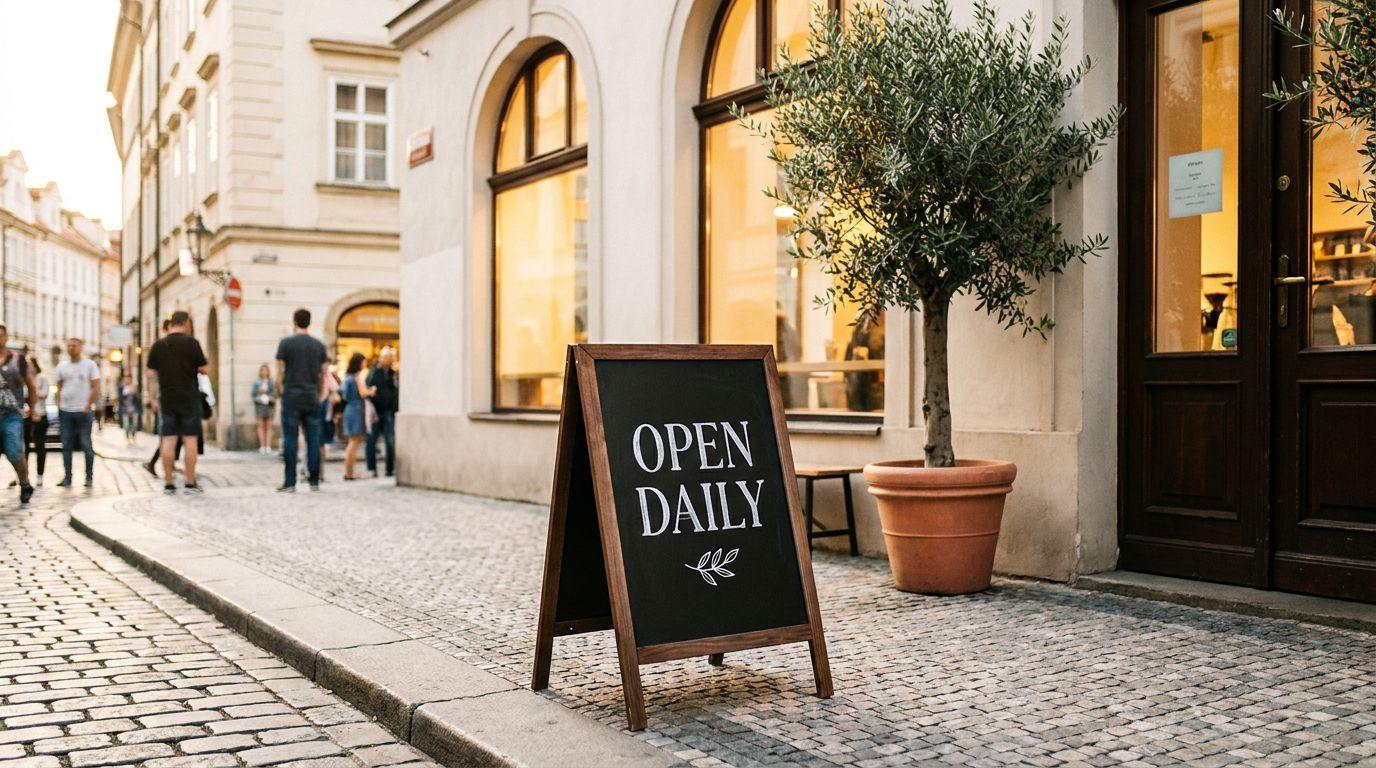
Before: Chalkboard lettering replaced from 'OPEN DAILY' to 'SUMMER SALE' while keeping the wooden frame, cobblestones, olive tree, and golden-hour lighting pixel-locked.
Original signQwen Image 2.1
Chalkboard lettering replaced from 'OPEN DAILY' to 'SUMMER SALE' while keeping the wooden frame, cobblestones, olive tree, and golden-hour lighting pixel-locked.Drag slider to compare
Zero-Drift Consistency

See how Qwen Image Edit preserves faces, text & products

Drag any slider to inspect how Qwen Image 2.1 locks subject geometry, facial identity, and perspective while transforming backgrounds, lighting, or framing.

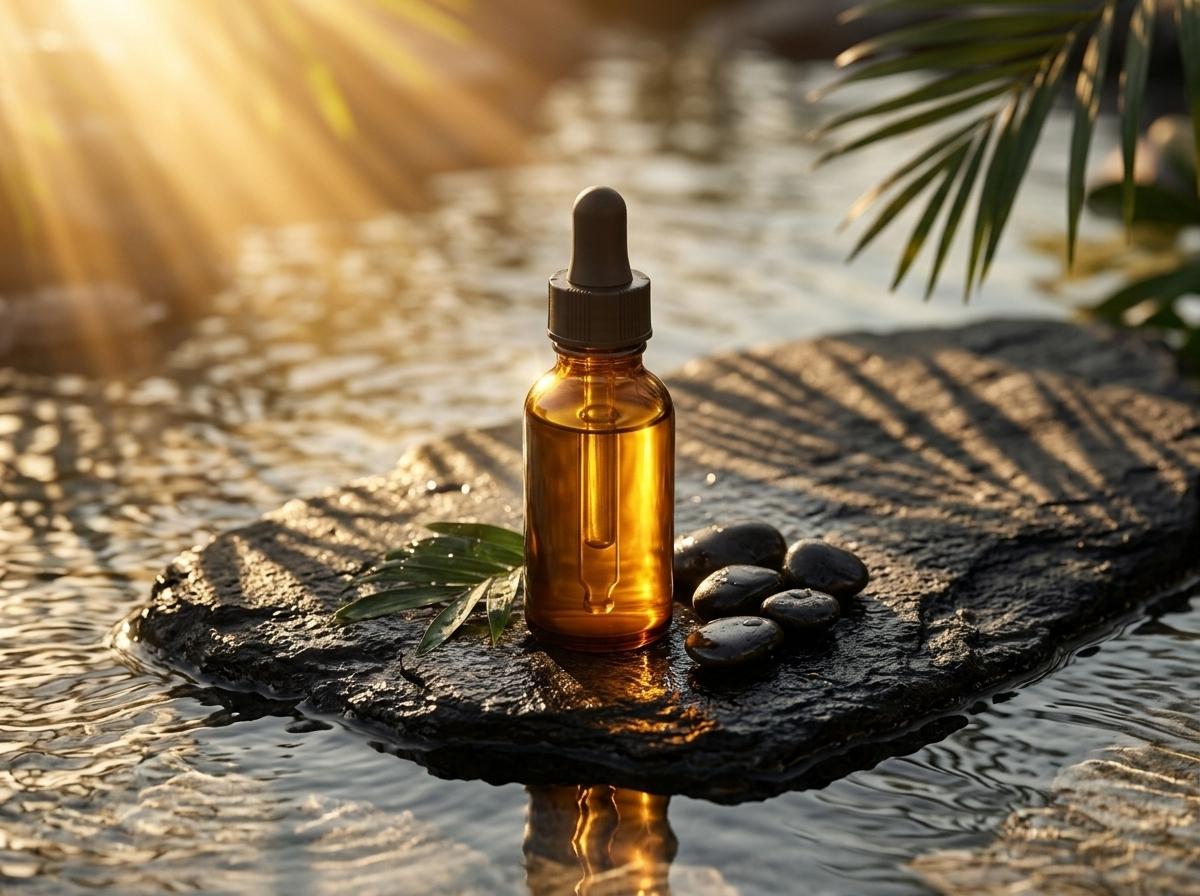
Amber serum bottle on wet volcanic slate with sunset shadows after Qwen Image Edit
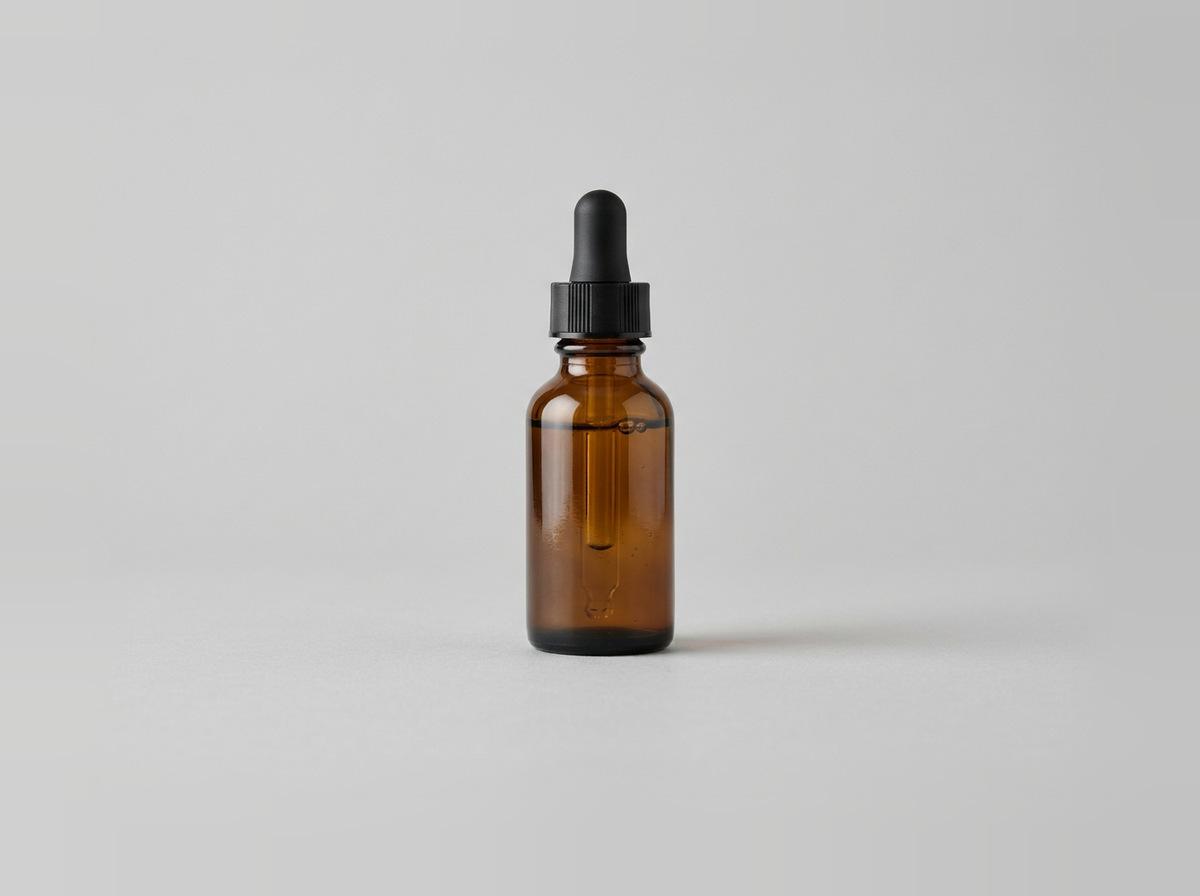
Amber serum bottle on plain table before Qwen Image Edit
Plain desk shotQwen Image 2.1

Commercial product scene swap

Replaces flat tabletop lighting with volcanic basalt, shallow water ripples, and warm directional sunset rays without distorting the glass bottle.

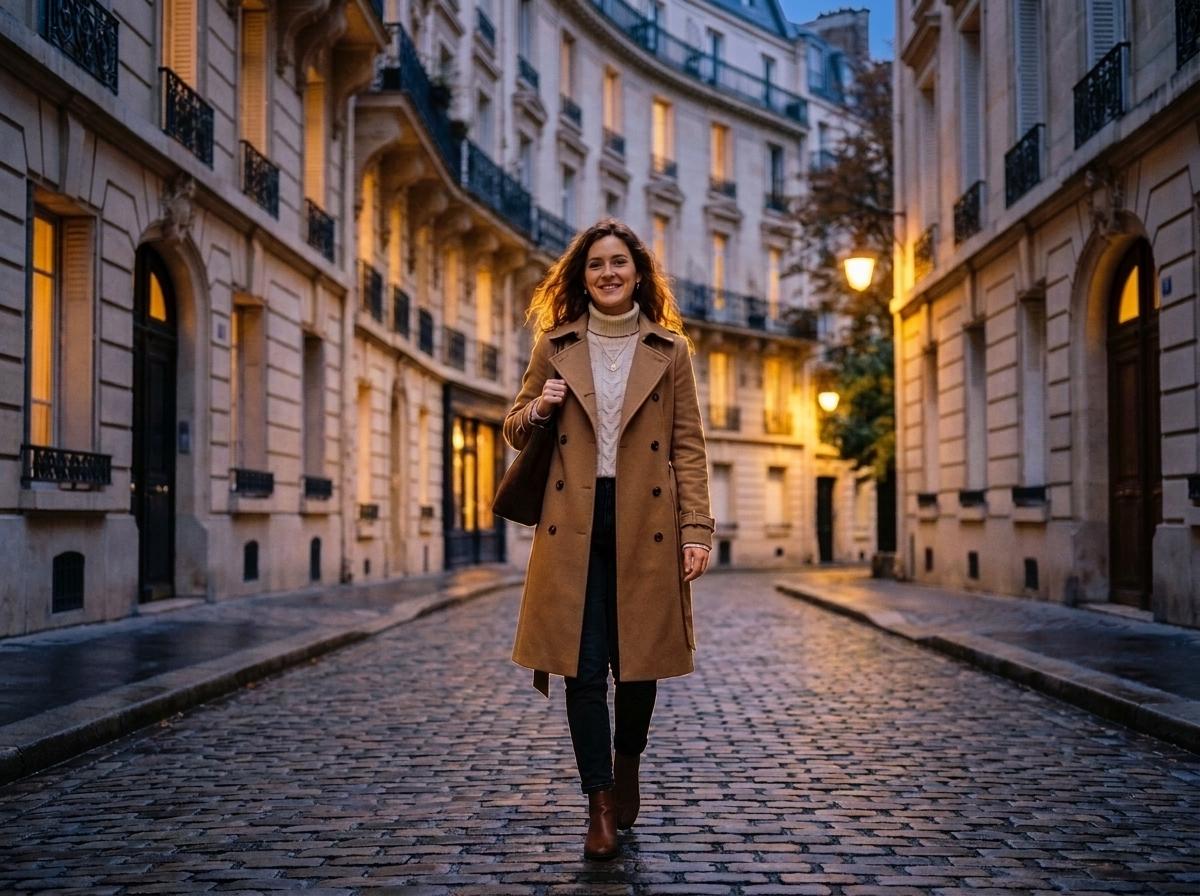
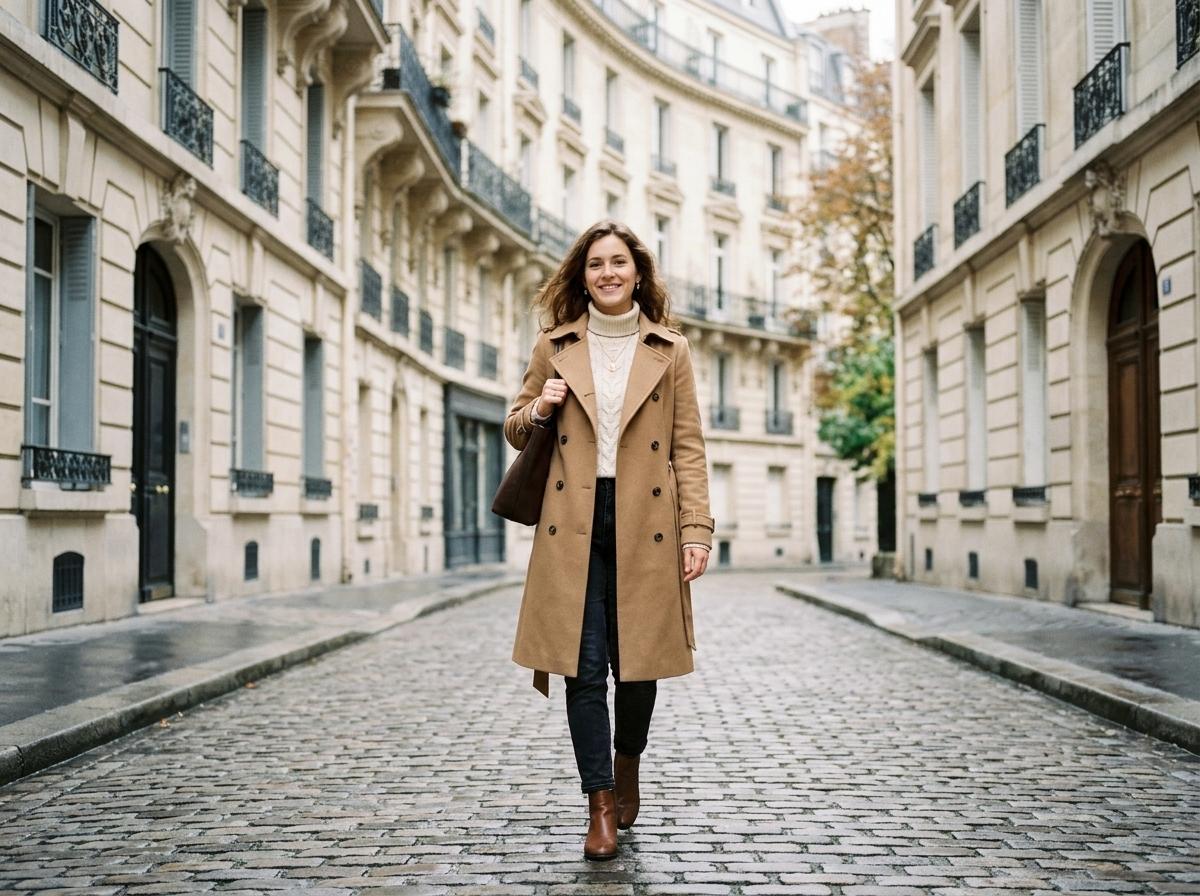
Golden-hour relit portrait with preserved identity after Qwen Image Edit
Daylight portrait before Qwen Image Edit relighting
Original daylightQwen Image 2.1

Portrait relighting with zero face drift

Shifts cool overcast daylight into warm twilight street glow and soft bokeh while keeping facial identity, hair strands, and clothing structure locked.

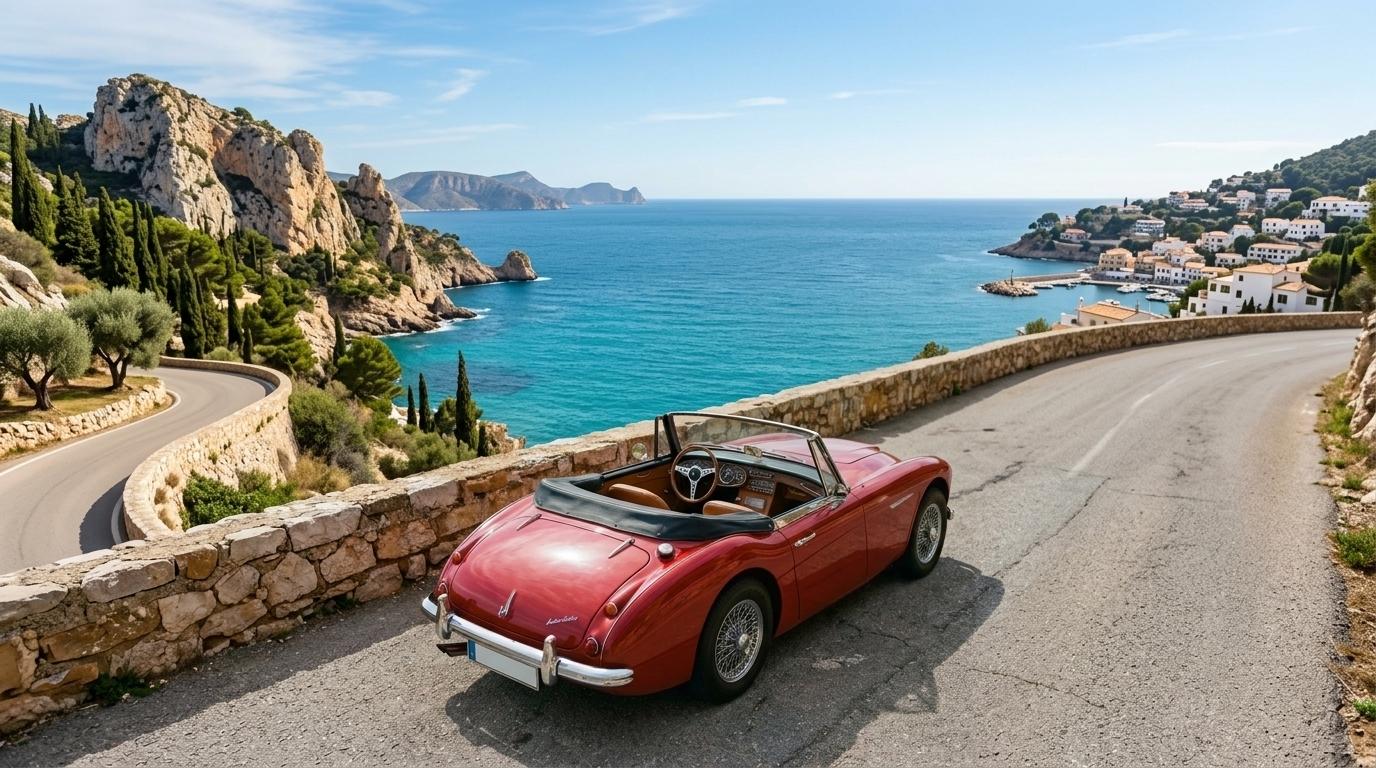
Vintage convertible car expanded into 16:9 coastal panorama with Qwen Image 2.1
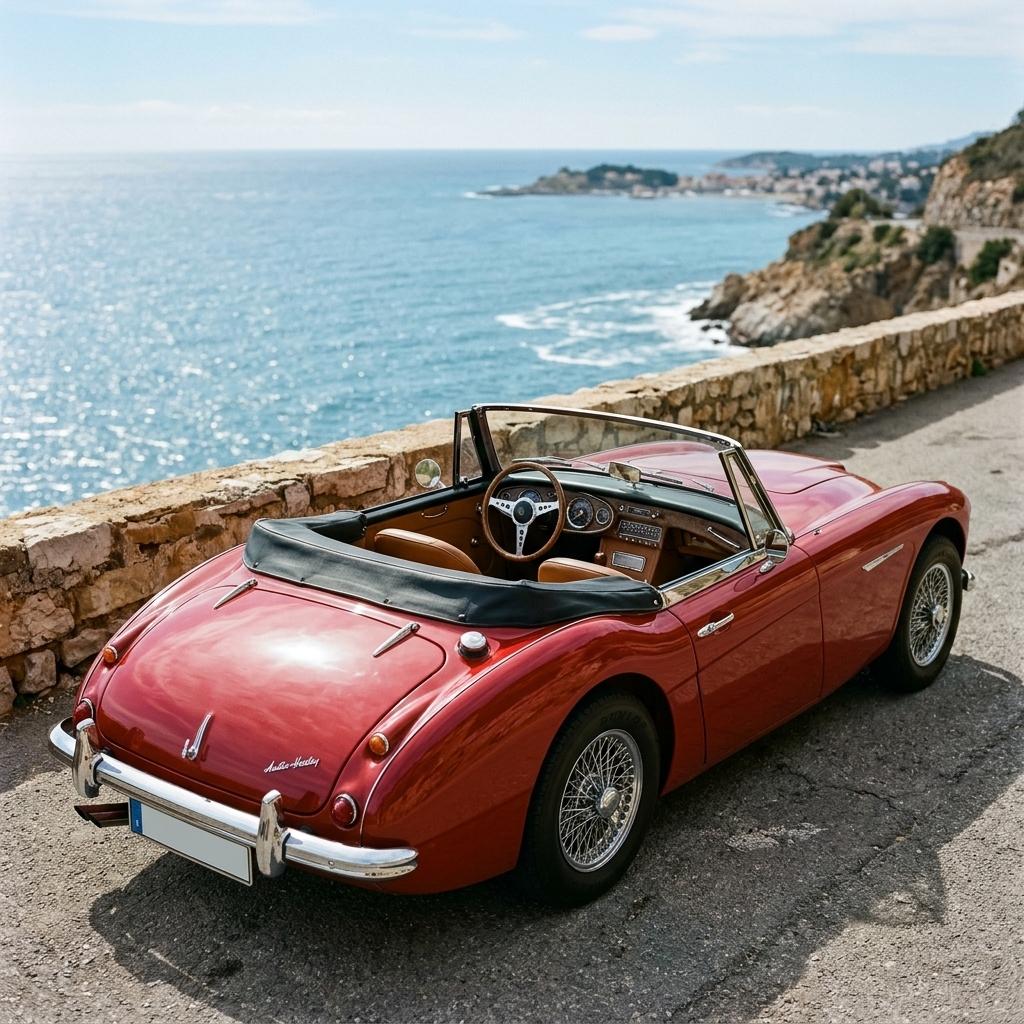
Vintage convertible car in tight square frame before Qwen Image Edit
Tight 1:1 cropExpanded 16:9

Context-aware canvas extension

Extends tight 1:1 square photography into widescreen 16:9 framing while keeping vehicle geometry, chrome reflections, and road perspective aligned.

Why Qwen Image 2.1

What makes Qwen Image Edit stand out from generic AI editors

Most AI image generators treat edits as a fresh generation—subtly warping faces, scrambling printed labels, and changing camera angles. Qwen Image Edit combines Qwen-VL multimodal understanding with pixel-aligned diffusion editing so targeted instructions change only what you ask for.

In-place text & signage editing

Powered by the Qwen-VL multimodal encoder, Qwen Image Edit reads embedded English and bilingual typography accurately—letting you replace poster titles, packaging copy, or storefront signs while matching perspective and surface grain.

Native RGBA transparent PNG output

Switch Background Output to Transparent PNG to export clean 4-channel alpha cutouts, stickers, logos, and e-commerce product silhouettes in a single pass with no separate background remover.

Low-drift face & product lock

Built specifically for instruction-guided editing rather than redrawing the entire frame—so facial likeness, jewelry, product labels, and perspective stay pixel-aligned across lighting and scene swaps.

Native 1K & 2K online, no GPU required

Skip 15GB+ weight downloads, ComfyUI custom nodes, and 24GB VRAM cards. Run Qwen Image 2.1 directly in your browser and send finished frames straight into Image to Video.

3-Step Online Workflow

How to use Qwen Image Edit online without ComfyUI

  1. 01

    Upload your source image

    Drop any JPG, PNG, or WebP photo up to 10 MB into the Qwen Image Edit panel—posters, product shots, portraits, or illustrations.

  2. 02

    Write a clear edit instruction

    Describe what should change in plain English, wrap replacement text in quotes, and specify what must stay untouched.

  3. 03

    Export 1K / 2K or Transparent PNG

    Pick 1K (15 credits) or 2K (25 credits), toggle Opaque or Transparent PNG, and download a clean watermark-free PNG in seconds.

Qwen Image Edit Use Cases

6 real-world workflows & copyable Qwen Image Edit prompts

Copy any instruction below into the Qwen Image 2.1 studio above and swap in your own wording, product, or scene details.

Typography

Edit text on posters, menus & signs

Swap headlines, prices, dates, or storefront lettering while keeping the original font weight, chalk or ink texture, lighting, and surface angle.

“Replace the chalkboard text 'OPEN DAILY' with 'SUMMER SALE' using the same hand-lettered white chalk style, slight smudge texture, and perspective. Keep the wooden frame and street background unchanged.”

Transparent PNG

One-click alpha cutouts & stickers

Toggle Transparent PNG under Background Output to isolate products, portraits, or illustrated mascots with clean hair and glass edges.

“Isolate the ceramic coffee mug cleanly on a transparent background with crisp rim edges and natural highlights. Remove the table and shadows completely.”

E-Commerce

Product background & studio staging

Turn simple phone photos into campaign-ready product visuals without warping bottle silhouettes, printed labels, or stitching.

“Move the exact same skincare bottle onto dark wet volcanic slate with shallow water ripples and warm sunset shadows. Preserve the bottle geometry, dropper cap, and amber liquid color.”

Portraits

Portrait relighting & outfit changes

Change time of day, swap jackets, or add golden-hour rim light while preserving facial features, skin texture, and expression.

“Relight the portrait with warm golden-hour rim light from the right and soft evening cafe bokeh behind her. Keep her exact face, gaze, hair, and coat unchanged.”

Cleanup

Remove objects, tourists & clutter

Erase power lines, stray props, or background bystanders while Qwen Image 2.1 reconstructs natural textures behind them.

“Remove the pedestrians and trash bin on the left side of the sidewalk and reconstruct the wet cobblestones and storefront reflection naturally. Keep the main subject untouched.”

Restyling

Consistent style & material transfer

Transform a photograph into cel-shaded anime, editorial film, or matte clay while keeping composition and subject pose locked.

“Restyle this street photograph into a hand-painted anime illustration with clean line work, warm sunset clouds, and soft cel shading while keeping the exact composition and character pose.”

Model & Version Comparison

Qwen Image 2.1 vs. Qwen Image Edit 2511, Seedream 5.5 & Nano Banana 2

Compare online Qwen Image 2.1 against local ComfyUI checkpoints and other editing models available in the same workspace.

Model / SetupHardware / SetupText EditingTransparent PNGMax ResolutionBest For
Qwen Image 2.1 (Online here)Instant in browserExcellent (bilingual & signage)Native RGBA toggle2K (15–25 credits)Text edits, transparent PNGs, zero-drift product & portrait edits
Qwen Image Edit 2509 / 2511 (ComfyUI)15GB+ weights + 24GB VRAMStrong (manual tuning)Requires extra alpha nodesGPU-dependentOffline custom LoRA pipelines & local researchers
Seedream 5.5Instant in browserGoodSupported2K (15–25 credits)Photorealistic lighting & seamless wide canvas expansion
Nano Banana 2Instant in browserGoodOpaque only4K (20–40 credits)Ultra-high-resolution 4K print & detailed outpainting
GPT Image 2.6 FlareInstant in browserVery strongSupported4K (20–40 credits)Conversational multi-step design edits & stylized posters
Prompting Playbook

How to write cleaner Qwen Image Edit prompts

01

Quote exact replacement text

Wrap new words in single or double quotes—for example: Replace 'OPEN DAILY' with 'SUMMER SALE' in the exact same painted white serif font.

02

Explicitly lock unchanged regions

Add an anchor phrase like 'Keep the person's face, pose, coat, and street perspective identical' so Qwen Image Edit modifies only the target attribute.

03

Describe light direction & temperature

Instead of saying 'make it nicer', specify directional light: 'warm golden-hour rim light from behind with glowing amber cafe windows'.

04

Toggle Transparent PNG for cutouts

Open the settings bar above the Edit button and select Transparent PNG whenever you need stickers, e-commerce silhouettes, or compositing layers.

Qwen Image 2.1 specs & credit pricing

Model
Qwen Image 2.1 (qwen2-1/image-to-image)
Resolutions
1K (15 credits) · 2K (25 credits)
Aspect Ratios
Auto, 1:1, 4:3, 3:4, 3:2, 2:3, 16:9, 9:16, 21:9, 9:21
Background Modes
Opaque · Transparent PNG (4-channel RGBA)
Pricing
Plans from $9.99/mo or one-time packs from $12.99
Watermarks
None on all exports · Commercial use included

Qwen Image Edit FAQ

What is Qwen Image Edit and how is it different from standard image generators?

Standard text-to-image generators often redraw an entire scene when you ask for a small change. Qwen Image Edit (powered by Qwen Image 2.1) is specifically trained for instruction-based editing: it keeps subject geometry and faces locked, edits embedded text cleanly, and exports native 4-channel transparent PNGs.

How much does Qwen Image Edit cost online?

1K edits cost 15 credits and 2K edits cost 25 credits—with no monthly subscription required. Monthly plans start at $9.99/mo and one-time credit packs start at $12.99 with credits that never expire. Failed runs are refunded automatically.

Do I need ComfyUI, Hugging Face downloads, or a local GPU to run Qwen Image Edit?

No. Everything runs in the cloud directly in your browser. Upload an image, write your Qwen Image Edit prompt, pick 1K or 2K, and download the full-resolution PNG in seconds—no 15GB weights or 24GB VRAM card needed.

How does Qwen Image 2.1 compare to Qwen Image Edit 2509 and 2511?

Qwen Image 2.1 unifies text-to-image and instruction-based editing into a faster 2K-native architecture with built-in 4-channel RGBA transparent PNG support, giving you production-ready edits online without managing separate local checkpoints or LoRAs.

Can Qwen Image Edit change text inside posters, logos, or product packaging?

Yes. In-place text editing is one of Qwen Image Edit’s signature strengths. Wrap the original and replacement words in quotes in your prompt and specify that the font style, color, lighting, and perspective should match the original surface.

Can Qwen Image Edit export transparent PNGs?

Yes. Open the settings bar above the Edit button and select Transparent PNG under Background Output to generate a native RGBA alpha-channel PNG in a single step.

Are Qwen Image Edit outputs watermark-free and allowed for commercial use?

Yes. Every edited image downloads as a clean, full-resolution PNG with zero watermarks and can be used for e-commerce listings, marketing campaigns, social posts, and client projects.

Can I animate a Qwen-edited image into a video?

Yes. After Qwen Image 2.1 finishes rendering, click Animate as Video to carry your edited frame directly into our Image to Video studio as the start frame for Seedance 2.5, Kling 4.0, Veo 3.1, or MiniMax H3 Max.

Turn any photo into a clip with the image to video generator on our homepage.

Qwen Image 2.1 · Native 2K & Transparent PNG

Try Qwen Image Edit right in your browser

No ComfyUI nodes, no local GPU, and no watermarks. Edit text, swap scenes, or export RGBA transparent PNGs in seconds.

15 credits (1K) · 25 credits (2K)One-time packs from $12.99One-click handoff to Image to Video
Edit with Qwen 2.1 Now